1. What Is a Frame?
Frames are the most important thing in Figma. Almost everything you build starts with a frame. Think of a frame as a container — it holds other layers (shapes, text, images, other frames) inside it.
Frames vs rectangles
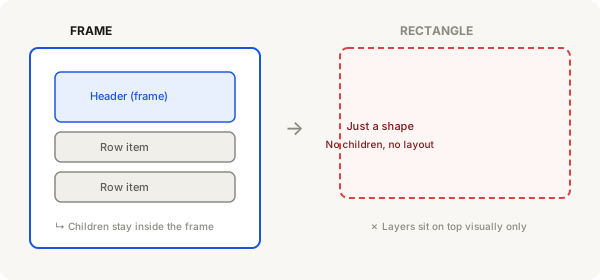
A frame looks like a rectangle on the surface, but they behave very differently:
| Feature | Frame | Rectangle |
|---|---|---|
| Can hold children | Yes — layers inside a frame are "clipped" to it | No — layers on top just sit there visually |
| Auto Layout | Yes — frames can have auto layout activated | No — rectangles cannot have auto layout |
| Constraints | Yes — children can be positioned relative to frame edges | No — nothing to constrain to |
| Presets | Yes — phone, tablet, desktop sizes built in | No presets |
How to create a frame
- Press F on your keyboard (or click the Frame tool in the toolbar — it looks like a crosshair or a diamond)
- Click anywhere on the canvas and drag to draw a frame. Release when it's the size you want
- Or, in the right panel, click the Frame section header and choose a preset like iPhone 14 or Desktop
- You'll see the canvas show a new frame with a light grey name label at the top (like "Frame 1")
Tip
You can also turn any rectangle into a frame. Draw a rectangle with R, select it, then press Ctrl + Alt + G (Windows) or Cmd + Option + G (Mac). This wraps it in a frame.
What goes inside a frame?
- Other frames (nested frames)
- Shapes (rectangles, circles, lines)
- Text layers
- Components
- Images
Anything you drag onto a frame becomes a child layer of that frame. The frame acts as a group — move the frame, and everything inside moves with it.
Why frames matter
- Auto Layout — only frames can use auto layout, which is how you make flexible, responsive designs
- Scrolling — frames can be independently scrollable
- Clipping — frames can hide content that overflows (essential for phone screens and scroll lists)
- Constraints — children inside a frame can be set to stick to edges, center, or stretch
Try it right now
Open Figma, press F, draw a frame roughly the size of a phone screen. Then press R and draw a rectangle inside it. Drag the rectangle around — notice it stays inside the frame. That's the basic idea of containment.