4. Text Basics
Text is everywhere in UI design — headings, labels, buttons, paragraphs, amounts, names. This lesson covers how to add, style, and position text in Figma.
Adding text
- Press T on your keyboard (the Text tool shortcut)
- Click anywhere on the canvas — a text cursor appears
- Start typing. The text box expands as you type
- When you're done, click somewhere else or press Escape
Alternatively, you can click and drag with the Text tool to create a fixed-width text box. This is useful when you want text to wrap to multiple lines at a specific width.
Changing the font
- Select the text layer by clicking on it
- In the right panel, find the Text section
- Click the Font dropdown — it shows the current font name (default is usually "Inter" or "Noto Sans")
- Start typing a font name to search, or scroll through the list
- Click a font to apply it
Tip
Not all fonts are available in Figma by default. Figma includes Google Fonts (like Inter, Noto Sans, Roboto) which work for everyone. If you upload a custom font, other collaborators on the same file will need it too.
Text properties you'll use most
| Property | Where to find it | What it does |
|---|---|---|
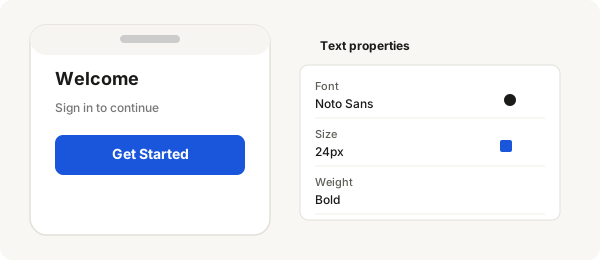
| Font size | Right panel, Text section — number field | How big the text is (16px for body, 24px+ for headings) |
| Weight | Right panel, Text section — dropdown next to font | Thickness: Regular, Medium, Bold (Bold = 700) |
| Color | Right panel, Fill section (text uses Fill, just like shapes) | Text color — default is black/white depending on background |
| Alignment | Right panel, Text section — left/center/right icons | Horizontal alignment inside the text box |
| Line height | Right panel, Text section — "Line height" (advanced toggle) | Space between lines of text. Auto is usually fine |
Resizing a text layer
- Drag the right edge of the text box to resize — text reflows to fit
- Double-click the text layer and select specific words to change their style individually
- Use the W and H fields in the right panel for precise dimensions
Text inside a frame
- Draw a frame (F) roughly phone-sized
- Press T and type a heading like "My Accounts"
- Set font size to 24px, weight to Bold
- Position it at the top of the frame by dragging
- Press T again and type some smaller text below it (14px, Regular)
- You now have a heading and body text inside a frame — the start of any screen
Try it right now
Open Figma. Create a frame (phone preset). Add a heading: "Welcome" (24px Bold). Add a subtitle: "Sign in to continue" (14px Regular, grey). Add a button label: "Get Started" (16px Medium, white). This is the same pattern used in almost every app screen.