3. Rectangles & Shapes
Shapes are the visual building blocks of your designs. Rectangles, circles, lines, and arrows — you'll use them every day. This lesson covers the basics of creating and styling shapes.
Drawing a rectangle
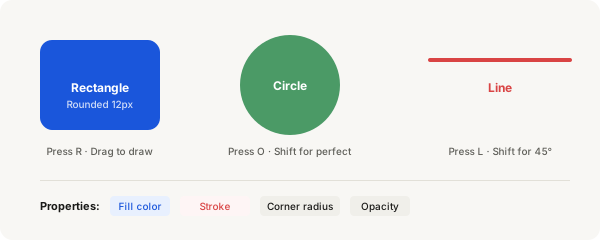
- Press R on your keyboard (the Rectangle tool shortcut)
- Click anywhere on the canvas and drag diagonally
- Release the mouse when the rectangle is the size you want
- To draw a perfect square, hold Shift while you drag
Other shapes
- Line — press L, click and drag. Hold Shift to make it perfectly horizontal, vertical, or at 45°
- Circle / Ellipse — press O, click and drag. Hold Shift for a perfect circle
- Polygon / Star — click the shape tool (next to Rectangle in the toolbar), choose Polygon or Star from the dropdown
Tip
After drawing, you can change the number of sides on a polygon or the number of points on a star in the right panel.
Styling a shape
Select a shape, then look at the right panel under the Design tab. Here's what you can change:
Fill
- Click the Fill section to expand it
- Click the color swatch to open the color picker
- Choose a color, or type a hex value like
#1A56DBfor blue - Adjust opacity with the slider below the color picker
- To remove fill, click the tiny minus icon next to "Fill"
Stroke (border)
- Click the + icon next to "Stroke" to add a border
- Set the color, thickness (weight), and style (solid, dashed, dotted)
- Stroke is drawn inside or centered on the shape edge — choose in the dropdown
Corner radius
- In the Design panel, find the Corner radius field (looks like a shape with curved corners)
- Type a number like 8 or 12 to round the corners
- Click the square icon next to it to set individual corner radii (top-left, top-right, bottom-left, bottom-right)
- Use 8–16 for card corners, 4–6 for buttons, 100 for a pill/rounded capsule
Resizing a shape
- Select the shape
- Drag the white handles at the corners and edges
- Hold Shift while dragging a corner handle to keep proportions
- Or type exact width and height values in the right panel (W and H fields)
Try it right now
Open Figma, draw a rectangle. Give it a blue fill, white stroke (2px), and corner radius of 12. Then draw a small circle inside it — that's your first icon placeholder.