2. The Layers Panel
The Layers panel is the left-side panel in Figma (usually visible by default). It shows you every single thing in your file as a list — every frame, shape, text layer, component, and group. It's your map.
Finding the Layers panel
- Look at the left sidebar in Figma. The top half is the toolbar/Layers toggle. You should see a tab that says Layers (icon: a stack of squares)
- If you don't see it, press Ctrl + Alt + 1 (Windows) or Cmd + Option + 1 (Mac) to open it
- If the panel is collapsed, click the Layers tab at the top to expand it
What you see in the Layers panel
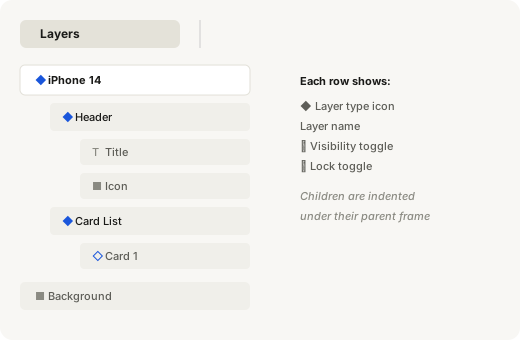
Every layer in your current page is listed as a row. Each row has:
- An icon showing the layer type (frame, text, shape, component, etc.)
- A name (usually auto-generated like "Frame 1", "Rectangle 3", "Text")
- A visibility toggle (eye icon) — click it to hide that layer
- A lock toggle (lock icon) — click it to prevent accidental edits
How to use the Layers panel
- Select a layer — click any row in the panel. The layer highlights on the canvas
- Rename a layer — double-click the name, type something meaningful (e.g. "Header" instead of "Frame 1"), press Enter
- Reorder layers — click and drag a layer up or down. Layers at the top of the list appear in front on the canvas. Layers at the bottom appear behind
- Hide a layer — click the eye icon next to its name. Click again to show it
- Lock a layer — click the lock icon. Locked layers cannot be moved or edited until unlocked
Nested layers
When you put things inside a frame, they appear indented under that frame in the Layers panel. You can expand or collapse a frame by clicking the small arrow next to its name.
Layers panel view:
├── iPhone 14 frame
│ ├── Header (frame)
│ │ ├── Title (text)
│ │ └── Icon (rectangle)
│ └── Card list (frame)
│ └── Card 1 (component)
└── Background (rectangle)
Good habits
- Rename layers as you create them. "Button" is much easier to find than "Rectangle 7"
- Group related layers in a frame. Select multiple layers, then press Ctrl + G (Windows) or Cmd + G (Mac) to group them
- Use the Layers panel to select hard-to-click layers. If something is behind another layer, just click its name in the panel
Tip
You can also search layers. Click the search icon (magnifying glass) at the top of the Layers panel and type part of a layer name. This is a lifesaver in complex files with dozens of layers.