6. Auto Layout Basics
Auto Layout is Figma's most powerful feature. It automatically arranges layers inside a frame — like a stack. Add a new item, and everything shifts to make room. Change the spacing, and everything adjusts. It's the foundation of every modern UI design workflow.
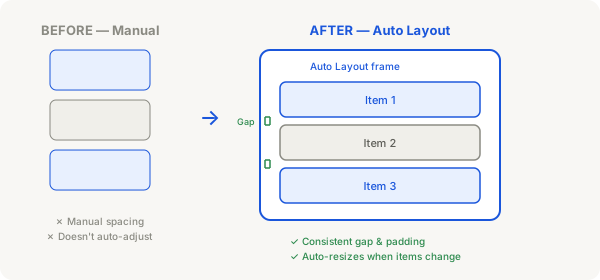
What Auto Layout does
- Arranges layers in a row (horizontal) or column (vertical)
- Adds consistent spacing between items (Gap)
- Adds consistent padding around the edges
- Automatically resizes the container when you add or remove items
How to activate Auto Layout
- Select a frame on your canvas (remember — only frames can have Auto Layout)
- Press Shift + A on your keyboard (or click the + Auto Layout button in the right panel)
- The frame now shows Auto Layout controls in the right panel: Direction, Gap, Padding, Alignment
- You'll also see blue/pink shaded zones inside the frame — these show the padding areas
Tip
You can also wrap any selection of layers in Auto Layout. Select multiple layers (shapes, text, frames), press Shift + A, and Figma creates a new Auto Layout frame around them automatically.
The three key settings
1. Direction
- Horizontal (→) — items sit side by side, left to right
- Vertical (↓) — items stack top to bottom
- Click the direction icon in the right panel to toggle between them
2. Gap (spacing between items)
- Type a number in the Gap field (e.g. 8, 12, 16)
- This sets the space between each item inside the frame
- All gaps are the same — you can't have different gaps between different pairs
3. Padding (space around the edges)
- Type numbers in the Padding fields (top, right, bottom, left)
- By default, all sides are linked — click the link icon to set different values per side
- Padding pushes items inward so they don't touch the edge of the frame
Try it: build a simple button
- Press F and draw a small frame
- Press T and type "Click Me"
- Select both the frame and the text, then press Shift + A
- Set Padding to 12 (all sides) — the frame hugs the text with space around it
- Set Corner radius to 8 on the frame (under Appearance)
- Give the frame a fill color — blue, for example
- Now duplicate the button (Ctrl + D). Change one button's text — notice the frame auto-resizes
That's the magic of Auto Layout. The button frame automatically hugs the text — longer text makes a wider button, shorter text makes a narrower button. No manual resizing needed.
What's next
Once you understand these basics, Chapter 2 dives much deeper into Auto Layout: Hug vs Fixed vs Fill, nested layouts, Space Between alignment, and building real components.
Key takeaway
Think of Auto Layout as "set it and forget it." You set the direction, gap, and padding — then you just add and remove items, and Figma handles the positioning automatically. This saves you hours of manual alignment.