9. Build a Bottom Nav Bar with Auto Layout
A bottom navigation bar is one of the most common mobile UI patterns. In Figma, you build it with a horizontal auto layout frame that contains icon + label pairs — each wrapped in their own vertical auto layout.
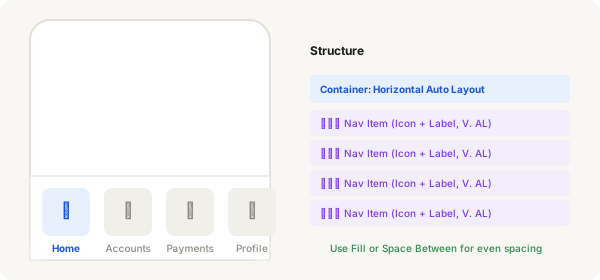
Step-by-step
- Press F and draw a frame 375 wide × 64 tall — this is your nav bar container
- Press Shift + A to enable Auto Layout, set direction to Horizontal
- Set padding: 8 top, 8 bottom, 8 left, 8 right. Set gap: 0
- Draw a small frame (48×48) for a nav item — this will hold an icon and label
- Press Shift + A on that frame, set direction to Vertical, gap: 2, alignment: Center
- Press R and draw a 24×24 circle or rect for the icon — colour it with your brand colour
- Press T and type a label like "Home" — centre align the text
- Duplicate this nav item 3 times for a total of 4 items (Home, Accounts, Payments, Profile)
- Select the parent nav bar frame and set Fill for width so items stretch evenly, or use Space Between to spread them
- Add a background colour to the nav bar frame and remove the default stroke
Pro tip
Fill makes each nav item take equal space. Space Between keeps items at their natural width and pushes them apart. Both work — pick the one that feels right for your design.