14. Design Fixed Headers and Scrollable Body Areas
Many app screens have a header that stays visible while the body scrolls. In Figma, you achieve this with separate frames — one fixed header and one scrollable body — combined with prototype settings.
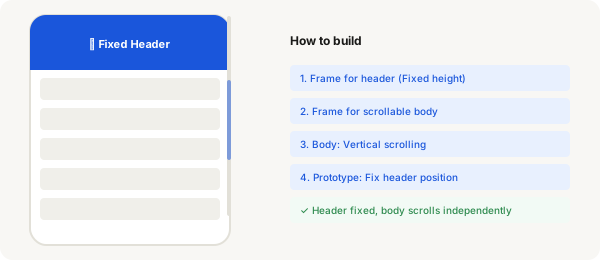
Step-by-step
- Press F and create a frame for the header — make it the full width of your screen and about 60–80px tall. Add background, title text, and any buttons
- Press F again and create a second frame directly below it — this is the scrollable body. Make it the remaining height of your screen
- In the body frame, fill it with enough content to be scrollable (several cards, list items, or text sections)
- Select the body frame. In the right panel, find Clip content and enable it
- Scroll down to the Prototype section in the Design panel and set Vertical scrolling to On
- Select the header frame. Keep its scrolling setting off — it needs to stay fixed
- Switch to Prototype mode. Select the header frame and enable Fix position when scrolling (the pin icon in the Prototype panel)
- Select the body frame and verify it scrolls (you'll see a scroll indicator on the right)
- Group both frames into a parent frame (optional) to keep them organised
- Press Present and scroll — the body moves, the header stays in place
Pro tip
Fix position in prototypes works differently than CSS 'position: fixed'. In Figma, you set it on individual frames within a larger frame. The fixed element stays in place while sibling frames scroll.