13. Prototype: Tap Tabs to Switch Content Panels
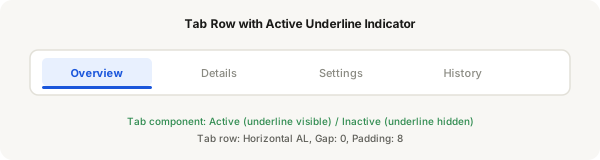
Now connect your tabs to different content panels. Tapping a tab switches the visible content and updates the tab's active state.
Step-by-step
- Create a content area frame below the tab row — this will hold your panel content (e.g. Overview content, Details content)
- Duplicate the entire screen (tab row + content area) for each tab — keep the layout identical, only change the content
- On screen 1, set the first tab to Active and the others to Inactive. Place Overview content in the content area
- On screen 2, set the second tab to Active. Place different content in the content area
- Switch to Prototype mode
- Select the second tab (Inactive) on screen 1, add an interaction: On click → Navigate to screen 2
- Repeat: wire each inactive tab on each screen to its corresponding screen
- Use Smart Animate transition with 250ms for smooth content changes
- Set the first screen as the Start frame and press Present to test
Pro tip
Smart Animate works best when layers have matching names across screens. If your content area frame has the same name on every screen, the transition will animate smoothly.