10. Create Active and Inactive Nav States Using Variants
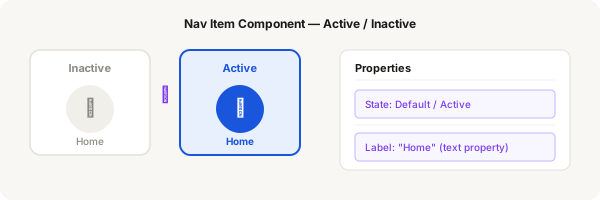
A nav item needs to look different when it's active vs inactive. You achieve this with component variants — a single component that can switch between a Default state and an Active state.
Step-by-step
- Select one of your nav items (icon + label frame) and press Ctrl + Alt + K to create a component
- In the right panel, find the Properties section and click the + icon next to Variant
- Name the variant property "State" and give it two values: "Default" and "Active"
- In the Default variant, keep the icon grey (#8a8a82) and the label grey — this is the inactive look
- Click the empty variant cell labelled "Active" to switch to editing that variant
- In the Active variant, change the icon fill to your brand colour (e.g. #1a56db) and the label text to the same colour
- Optionally add a filled background rectangle behind the icon in the Active variant
- Rename instances to use meaningful layer names (like "Icon", "Label") — this helps with variant organisation
- Click back to the Default variant. The grid in the Properties panel shows both variants
- When you use instances of this component, you can switch between Default and Active from the Properties panel
Pro tip
Variants keep your Components panel clean. Instead of two separate components (Nav Default and Nav Active), you have one component with two states that you control from the sidebar.