12. Create Tabs with an Underline Indicator
Tabs are a navigation pattern where the active tab has a visible underline indicator. You'll build a reusable tab component with Active/Inactive variants that control underline visibility.
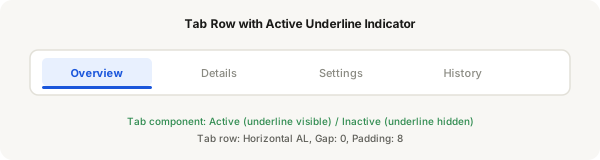
Step-by-step
- Press T and create a text layer for the tab label, e.g. "Overview"
- Add a small rounded rectangle below the text — this is the underline indicator. Make it 3px tall and the same width as the text (or slightly wider for a better look)
- Press F and create a frame that wraps the text and underline, enable Auto Layout with Vertical direction, gap: 4
- Add horizontal padding: 8, vertical padding: 4 to the frame
- Select the frame and press Ctrl + Alt + K to make it a component
- Add a variant property called "State" with values "Active" and "Inactive"
- In the Active variant, set the text and underline to your brand colour. Keep the underline visible
- In the Inactive variant, set the text to grey (#8a8a82) and — crucially — hide the underline layer by clicking the eye icon in the Layers panel
- Give the tab row a parent frame: press F, set Horizontal Auto Layout, gap: 0, padding: 8
- Place 3–4 instances of your tab component in the row, setting each to Inactive, and the active one to Active
Pro tip
The underline visibility is toggled per variant. In the Inactive variant, hide the underline layer. In the Active variant, show it. This is cleaner than using boolean properties for this case.