11. Prototype: Tap Nav Icons to Switch Between Screens
Now you'll wire up a prototype so that tapping a nav item navigates to a different screen, and the nav updates to show which screen is active.
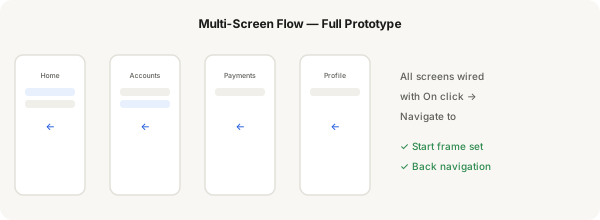
Step-by-step
- Create 4 screen frames — one for each nav item: Home, Accounts, Payments, Profile
- Copy your nav bar component onto each screen frame, positioning it at the bottom
- In each screen, set the matching nav item variant to Active (e.g. on the Accounts screen, set the Accounts nav item to Active)
- Switch to Prototype mode (top right tab)
- Select the Home nav item on screen 1, click the + on the handle that appears
- Drag the connection arrow to the Accounts screen frame. In the Interaction panel, set On click → Navigate to — choose Smart Animate or Instant transition
- Repeat for each nav item: connect it to its corresponding screen
- On each screen, wire all 3 inactive nav items too — so every tap navigates correctly
- Set the Home screen as the Starting frame (the play icon icon in the Prototype panel)
- Press the Present icon (▶) in the top toolbar and tap through your nav to test
Pro tip
Tip: You can hold the Alt key while dragging connection handles to quickly duplicate interactions. Or use the Prototype panel to view all connections in a list.