15. Build a Text Input Field
A text input field is a core building block of any form. You'll build it as a component with a label, an input area, and placeholder text — all structured with auto layout.
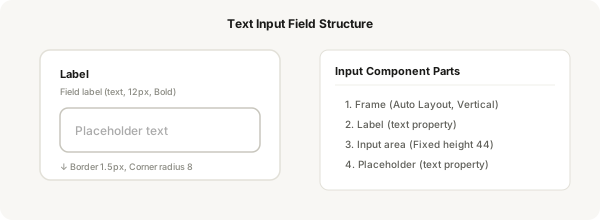
Step-by-step
- Press F and create a frame 320 wide — this is your input container
- Enable Auto Layout with Shift + A, set direction to Vertical, gap: 6
- Add a text layer for the label: press T, type "Label" — set font size 12, font weight Bold, colour #1a1a18
- Press R and draw a rectangle 44px tall with corner radius 8 — this is the input area
- Give the rectangle a white fill and a 1.5px border (#c8c6bd)
- Add horizontal padding: 12 to the rectangle using Auto Layout (select it, enable Auto Layout, set padding 0 top/bottom, 12 left/right)
- Add a text layer inside the rectangle: press T, type placeholder text like "Enter value...", set colour to #b0aea6 for a placeholder look
- Make the whole input (label + rectangle + placeholder) a component: press Ctrl + Alt + K
- Add a text property for the label and another for the placeholder — so you can change them per instance
- Test: duplicate your component instance and change the label and placeholder text from the Properties panel
Pro tip
Text properties are different from variants. A text property lets you change the text content of a specific layer in your component instances — perfect for labels and placeholders.