18. Build a Dropdown Select Component
A dropdown select has a closed state (showing the current selection with a chevron) and an open state (showing the list of options). You'll build this as a component with two variants.
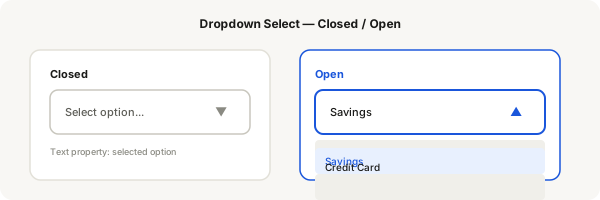
Step-by-step
- Press F and create a frame 320 wide × 44 tall — this is the dropdown field
- Enable Auto Layout, Horizontal, with padding: 12 left, 12 right, gap between items set to Space Between (or add a filler frame)
- Add a text layer for the selected option (e.g. "Select option...") — set colour to #8a8a82 for a placeholder look
- Add a text layer for the chevron icon (use ▼, ▼, or an actual chevron icon) on the right
- Select the whole field and press Ctrl + Alt + K to make it a component
- Add a variant property "State" with values "Closed" and "Open"
- In the Closed variant, keep the border default and the chevron pointing down
- Click the Open variant cell. Flip the chevron to point up. Optionally change the border to blue. Add an options list below the field: create 3–4 text items (Checking, Savings, Credit Card) as a vertical auto layout list
- Add a text property for the selected option text — so instances can show different selections
- Duplicate the component and change the text to test the text property
Pro tip
For the options list in the Open variant: make sure it's a separate frame grouped below the input field. Use a vertical auto layout for the list with gap: 0 and items that highlight on selection.