19. Build Radio Button and Checkbox Components
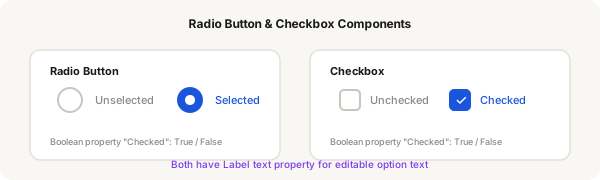
Radio buttons (for single selection) and checkboxes (for multiple selection) are form fundamentals. You'll create both as components with boolean properties for the checked state.
Step-by-step
- Create a radio button: press O and draw a 24×24 circle, fill white, stroke #c8c6bd
- Add a smaller filled circle inside (12×12, fill #1a56db) — this appears when selected
- Select both circles and press Ctrl + Alt + K to create a component
- Add a boolean property called "Checked". When Checked = True: show the inner circle, change the outer stroke to #1a56db. When False: hide the inner circle, keep grey stroke
- Add a text layer to the right of the radio circle (a text property called "Label")
- Repeat for checkbox: use a 20×20 rounded rect (rx: 4) instead of a circle. For the checked state, fill the square with #1a56db and add a white ✓ text centered inside
- Wrap both the radio/checkbox and the label in an auto layout frame (Horizontal, gap: 8, alignment: Center)
- Group the whole thing as a component with a boolean "Checked" property and a text "Label" property
Pro tip
Boolean properties are perfect for radio buttons and checkboxes because each item has exactly two states: checked or unchecked. No need for a multi-value variant.