20. Prototype: Conditional Button States (Disabled to Enabled)
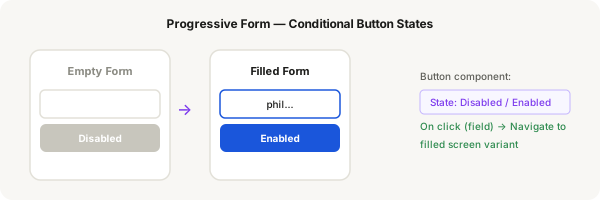
A common form pattern: the submit button starts disabled, turns enabled once all fields are filled, and clicking it shows a success state. You'll prototype this progressive flow.
Step-by-step
- Create a button component with two variants: "Disabled" (grey background, #c8c6bd) and "Enabled" (blue background, #1a56db)
- Create screen 1: Empty form with 2 text inputs (Empty variant) + the button set to Disabled
- Create screen 2: Filled form — set both inputs to Filled variant + button set to Enabled
- Create screen 3: Success screen or button loading state (optional)
- Switch to Prototype mode
- On screen 1, select the first text input. Add interaction: On click → Navigate to screen 2
- On screen 2, select the Enabled button. Add interaction: On click → Navigate to screen 3 (or show a toast overlay)
- Set screen 1 as the Starting frame
- Test the flow: tap an input field → form switches to filled state → tap Enabled button → success
Pro tip
This "multiple screens" approach is how Figma prototypes conditional flows. Each screen represents one state of the form. You transition between them based on user interactions.