16. Create Input Variants (Empty, Filled, Active, Error)
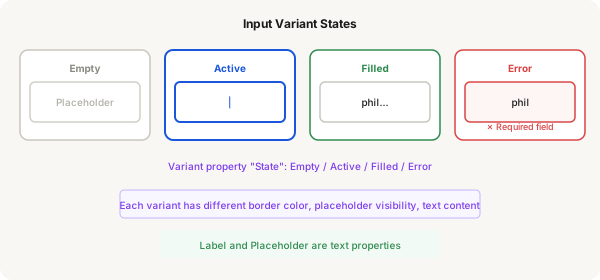
An input field has different visual states: empty (default), active (focus), filled (with content), and error. You'll create these as component variants so you can switch between them.
Step-by-step
- Select your input component and add a variant property called "State" with values: "Empty", "Active", "Filled", "Error"
- Leave the Empty variant as-is (grey border, placeholder text shown)
- Click the Active variant cell. Change the border to blue (#1a56db, 2px). Keep placeholder text visible. Optionally add a blinking cursor (a thin blue rect) inside the input
- Click the Filled variant cell. Change the placeholder text to actual text (e.g. "phil@example.com") — update the label's text property if needed. Keep the default grey border
- Click the Error variant cell. Change the border to red (#d94444). Change the input background to light red (#fef5f5). Add an error message text below the input — make it red, font size 10
- Add a boolean property called "Error message" if you want to toggle the error message visibility separately
- Set up the variant order in the Properties panel so they display logically: Empty, Active, Filled, Error
- Test each variant by creating instances and switching the State property
Pro tip
Error state: red border, light red background, red error message. Active state: blue border. Filled state: normal border with actual text. Empty: grey border with placeholder.