1. Align Items Left and Right Using Space Between
Auto Layout's Space between alignment lets you push items to opposite ends of a row or column. This is how you create layouts where one element is on the left and another is on the right — like an icon on one side and a menu on the other.
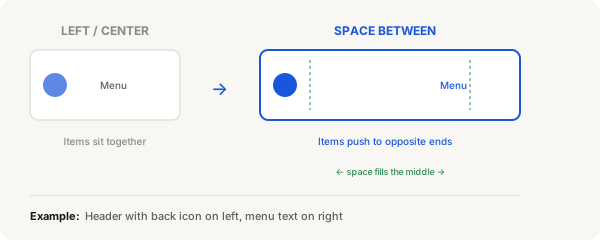
How to use Space Between
- Create an Auto Layout frame: press F, draw a frame, then press Shift + A
- Set the direction to Horizontal (so items sit side by side)
- Add at least two items inside the frame (e.g. a shape on the left and text on the right)
- Select the Auto Layout frame
- In the right panel, find the Alignment section in Auto Layout settings
- Double click the Alignment panel to activate Space between mode
- The first item snaps to the left edge, the last item snaps to the right edge
If you have more than two items, they distribute evenly with equal space between each one.
Example: Header with back button and menu
- Press F and draw a frame about 375 wide and 60 tall
- Press Shift + A to add Auto Layout, direction Horizontal
- Add padding: 16 on left and right, 12 on top and bottom
- Press O and draw a small circle (40×40) on the left for a back button
- Press T and type some text on the right for a menu label
- Select the frame, change alignment to Space between
- The circle stays on the left, the text jumps to the right
Space between vs Center vs Left
| Setting | What it does |
|---|---|
| Left / Top | Items sit together on the left (or top for vertical) |
| Center | Items sit together in the middle |
| Right / Bottom | Items sit together on the right (or bottom for vertical) |
| Space between | Items spread out so the first is at the start and the last is at the end |
Note
Space between only works inside an Auto Layout frame. If your frame doesn't have Auto Layout enabled, you won't see this option. Press Shift + A to activate it.