6. Stack Multiple Cards in a Vertical List
You have a card component. Now you want several of them stacked vertically with equal, consistent spacing. Here's how to go from one card to a full list.
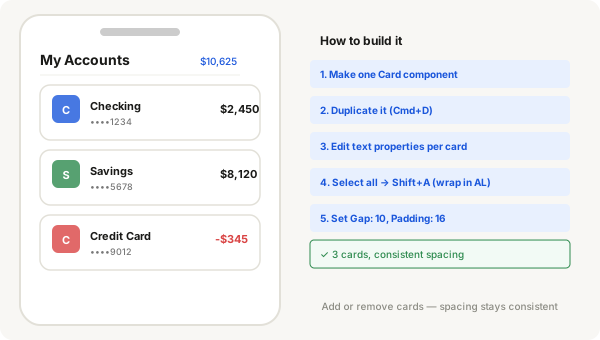
- Drag your first card component from the Assets panel onto the canvas (or use an instance already on the canvas)
- With the card selected, press Ctrl + D (Windows) or Cmd + D (Mac) to duplicate it
- Duplicate again until you have all the cards you need (e.g. 3 cards for Checking, Savings, and Credit)
- Edit each card's text properties:
- Click the first card instance
- In the right panel, change the Account Name, Account Number, and Balance
- Repeat for each card
- Select all the cards (click and drag a selection box over them, or hold Shift and click each one)
- Press Shift + A to wrap them in Auto Layout
- Figma automatically sets direction to Vertical
- In the right panel, set Gap to the space you want between cards (e.g. 12)
- Set Padding to the space you want around the edges of the list (e.g. 16 on all sides)
- The list is done. Every card has the same spacing, and the padding is consistent around the whole group
Adding a new card later
- Double-click into the list frame
- Select any existing card
- Press Ctrl + D / Cmd + D to duplicate
- The new card automatically appears in the correct position with the correct spacing
- Edit its text properties as needed
Removing a card
- Click the card you want to remove
- Press Delete or Backspace
- The remaining cards automatically adjust to close the gap
Putting the list into a phone screen
- Press F and choose a phone preset (e.g. iPhone 14) from the right panel
- Add your header elements (status bar, page title, total balance) at the top of the phone screen
- Select your cards list frame
- Drag it into the phone screen frame, positioning it below the header
- If the list is wider or narrower than you want, adjust the list frame's width or use Fill container
Tip
If you want the cards to stretch to the full width of the phone screen, set the phone screen to Fixed width 375, then set the cards list frame to Fill container width. Make sure the phone screen has Auto Layout (vertical) or use the alignment Stretch option.