4. Make a Card Component From Scratch
You'll build a reusable account card for a banking app. It has an icon on the left, account name and number in the middle, and a balance on the right. You make it once, turn it into a component, then reuse it with different text in each instance.
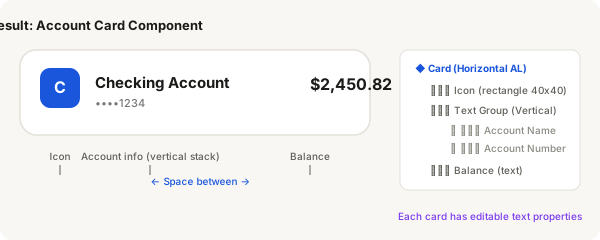
Part 1 — Create the card container
- Press F to make a Frame
- Draw a rectangle roughly 350 wide and 80 tall
- In the right panel, under Appearance, set Corner radius to 16
- Under Fill, click the white square and choose a color (or leave white for a banking card look)
- Press Shift + A to activate Auto Layout
- Set direction to Horizontal
- Set Padding to 16 on all four sides
- Set Gap to 12
- Set vertical alignment to Center (so items sit in the vertical middle of the card)
Part 2 — Add the icon
- Inside the card frame, press R for Rectangle or O for Circle
- Make it 40 × 40
- Give it a fill color (e.g. a brand blue like
#1A56DB) - Optionally press T and type a letter on top of the shape (like "C" for Chase) — use Bold, White, 18px
Part 3 — Add the account info (middle section)
- Press T and type "Checking Account"
- Set font to Noto Sans Bold, 16px
- Press T again and type "••••1234"
- Set this one to Noto Sans Regular, 12px, color grey (e.g.
#777) - Select both text layers
- Press Shift + A to wrap them in a vertical Auto Layout group
- Set Gap to 2
Part 4 — Add the balance (right side)
- Press T and type an amount like "$2,450.82"
- Set font to Noto Sans Bold, 16px
Part 5 — Space everything with Space Between
- Your card now has 3 items: Icon, Text Group, Balance
- Select the Icon and the Text Group together
- Right-click → Wrap in Auto Layout (or Ctrl + Alt + G)
- You now have 2 items: the left group, and the Balance
- Select the main card frame
- In Auto Layout settings, change alignment to Space between
- Icon and text sit on the left, balance sits on the right
Part 6 — Make it a Component
- Select the entire card frame
- Right-click → Create Component (or press Ctrl + Alt + K on Windows, Cmd + Option + K on Mac)
- The frame turns purple in the Layers panel
- Double-click the name in the Layers panel and rename it "Account Card"
Part 7 — Add text properties
- Double-click into the Main Component (the one with the filled purple diamond)
- Click the "Checking Account" text
- In the right panel, find the Properties section
- Click the + icon → choose Text property
- Name it "Account Name"
- Repeat for the account number text: name it "Account Number"
- Repeat for the balance text: name it "Balance"
- Press Escape to exit the Main Component
How to use your component
- Open the Assets panel on the left (or press Alt + 2)
- Find "Account Card"
- Drag it onto your canvas
- With the instance selected, look at the right panel
- Your text properties (Account Name, Account Number, Balance) appear as editable fields
- Type new values — only that instance changes
Tip
To change the icon color per card later, you can make the icon a separate component with color variants. But that's for later. For now, if you need a different color, just duplicate the Main Component and change the fill color there.