7. Add Scroll to a Long List
When your list has more items than fit on one screen, you can make it scroll independently. This is essential for realistic prototypes. The list scrolls while the header stays fixed in place.
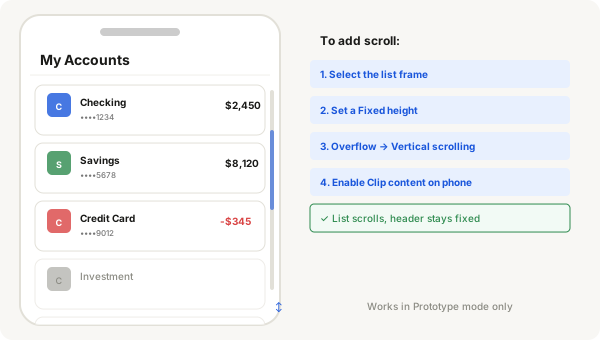
- Select the Auto Layout frame that contains your list items
- Add enough items so the list is taller than the space you want to show — for example, 6 or 7 account cards when only 4 fit on screen
- With the list frame selected, look at the right panel under the Prototype section
- Find the Overflow dropdown.
- Click it and change from No scrolling to Vertical scrolling
- Now set a fixed height on this frame. Either:
- Drag the bottom edge of the frame upward until it's the height you want, or
- Click the Height dropdown and choose Fixed, then type a number (e.g. 500)
- The frame now shows a dashed outline at the bottom edge — this means content extends beyond what's visible
- Make sure the parent frame (e.g. your phone screen) has Clip content enabled. Select the parent, look in the Layout section, and check the Clip content box
- Switch to Prototype mode: click the Prototype tab in the right panel, or press Shift + E
- Click Present (the play button in the top-right) or press Shift + Space
- In the prototype preview, hover over the list and scroll with your mousewheel or trackpad
- The list scrolls up and down while the header and other elements outside the list stay in place
Important notes
- Scrolling only works in Prototype mode, not in Design mode
- You can set Horizontal scrolling the same way — useful for carousels and tab rows
- The parent frame must have Clip content on. Without it, the overflowing content will still be visible (which looks wrong)
- If nothing scrolls in the prototype:
- Check that the list frame has a Fixed height set
- Check that the list frame is inside your phone screen frame
- Check that the Overflow dropdown actually says "Vertical scrolling"
Tip
For a realistic phone prototype, your phone screen frame should have Clip content enabled. This hides anything that extends beyond the screen edges, just like a real phone does. It's a small checkbox in the Layout section when you select the phone frame.