2. Nest Auto Layouts Inside Each Other
Nesting means putting one auto layout frame inside another. This is how you build complex, flexible layouts — a card that has a row inside a column, or a list that contains multiple cards.
Think of it like boxes inside boxes. Each box does its own job, and they work together.
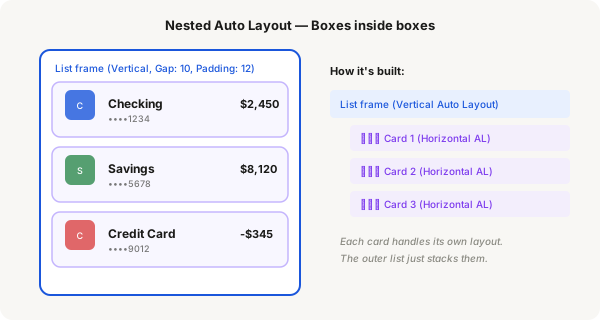
Example: Making a list of cards
- First, build one card using Auto Layout with Horizontal direction (icon, text, number)
- Style the card: add a Fill color, Corner radius, and Padding
- Select the entire card frame
- Press Ctrl + D (Windows) or Cmd + D (Mac) to duplicate it. Make 2 or 3 copies
- Edit each copy so they have different content (different account names, balances)
- Select all the cards (click and drag over them, or hold Shift and click each)
- Press Shift + A to wrap them in a new Auto Layout frame
- In the right panel, adjust Gap to control the space between each card (e.g. 12)
- Adjust Padding to control the space around the edges of the whole list (e.g. 16)
You now have a nested structure:
List frame (Vertical Auto Layout)
├── Card 1 (Horizontal Auto Layout)
│ ├── Icon
│ └── Text group (Vertical Auto Layout)
├── Card 2 (Horizontal Auto Layout)
│ ├── Icon
│ └── Text group (Vertical Auto Layout)
└── Card 3 (Horizontal Auto Layout)
├── Icon
└── Text group (Vertical Auto Layout)
Editing nested items
- Double-click a card to go inside the nested frame
- Double-click again to go deeper (e.g. into the text group)
- Press Escape to go back up one level
- Or use the Layers panel on the left sidebar to navigate directly by clicking layer names
Adding a new card later
- Click into the list and select any card
- Press Ctrl + D / Cmd + D to duplicate
- The new card automatically appears in the correct position with the correct spacing
Key concept
Each Auto Layout frame handles its own job. The outer list handles vertical stacking and spacing. Each inner card handles its own horizontal layout. This separation makes everything easier to manage and change.