5. Add Changeable Text Properties to a Component
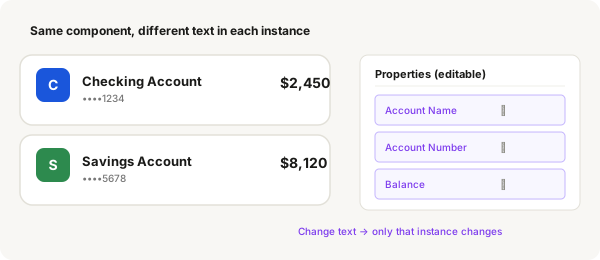
Text properties let you change the words inside a component instance without detaching it from the Main Component. One card component, infinite text variations across all your instances.
- Find your Main Component — it has a filled purple diamond icon (◆) in the Layers panel. Make sure you're not using an instance (outline diamond ◇)
- Double-click the Main Component to enter it
- Click on the text layer you want to make editable (e.g. the account name)
- In the right panel, scroll down to the Properties section
- Click the + button (Create Property)
- From the dropdown, choose Text property
- A dialog appears. Type a clear name like "Account Name" or "Heading"
- Click Create property
- The property now appears in the right panel
- Press Escape to exit the Main Component
- Select any instance of your component on the canvas
- In the right panel, you'll see your property with a text field
- Type new text — it changes only that instance
- Repeat steps 2–9 for every text layer you want to be individually editable
Good to know
- Create as many text properties as you need — one per text layer you want editable
- Name them clearly: "Title", "Subtitle", "Amount" are much better than "Text 1", "Text 2"
- If you edit the Main Component's text directly (bypassing properties), all instances that haven't overridden that text will update
- If an instance has been overridden via a text property, editing the Main Component's text won't change that instance anymore
Properties work on instances only
Text properties don't change the Main Component. They only appear as editable fields when you select an instance on the canvas. The Main Component keeps its original text.