29. Understand Constraints
Constraints control how a layer behaves when its parent frame resizes. They're essential for responsive design — making sure your layouts adapt to different screen sizes without breaking.
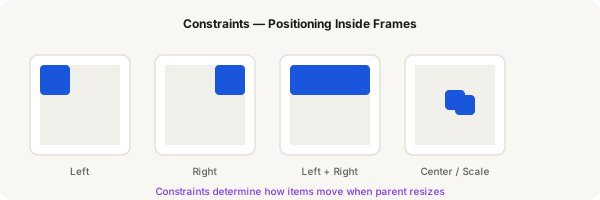
Step-by-step
- Press F and create a frame (300×200) as your parent container
- Draw a small rectangle (40×40) inside the frame at the top-left corner
- Select the rectangle. In the constraint controls (top-right of the Design panel), click the dropdown and set Left for horizontal
- Resize the parent frame — the rectangle stays at the same distance from the left edge
- Change constraint to Right — the rectangle now stays attached to the right edge when you resize
- Change constraint to Left + Right — the rectangle stretches horizontally as the parent grows
- Change constraint to Center — the rectangle stays centered regardless of parent width
- Change constraint to Scale — the rectangle grows/shrinks proportionally with the parent
- Repeat the same steps for vertical constraints (Top, Bottom, Top + Bottom, Center, Scale)
- Try combining Left + Top vs Center + Center to see how different combinations behave
Pro tip
Constraints only work for elements inside a regular frame. In auto layout frames, constraints are replaced by the auto layout settings (alignment, padding, hug/fixed/fill). They're two different layout systems.