31. Apply Min and Max Width to Components
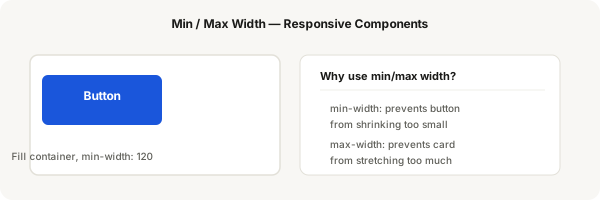
Min and max width prevent components from becoming too small or too large when the parent resizes. They're essential for responsive buttons, cards, and input fields.
Step-by-step
- Create a button component: a rounded rectangle with text, Fill for width so it stretches with the container
- Place the button inside a narrow frame (200 wide) — the button fills the full width
- In the Design panel, scroll down to Constraints & Resizing section
- Set Min width to 120px — the button won't shrink below this
- Now place the button in a very wide frame (600 wide) — the button stretches to 600px (probably too wide)
- Set Max width to 320px — the button won't grow beyond this
- Test: resize the parent frame. The button stays between 120px and 320px
- Apply min-width to a card component to prevent it from collapsing too small
- Apply max-width to a text body to prevent overly long line lengths
- Combine min-width + Fill for adaptive components that have constraints
Pro tip
Min/max width only works on auto layout items or frames. A regular rectangle with fixed dimensions won't honour min/max width. The component must be set to Fill or have auto layout enabled.