30. Use Auto Layout Wrapping
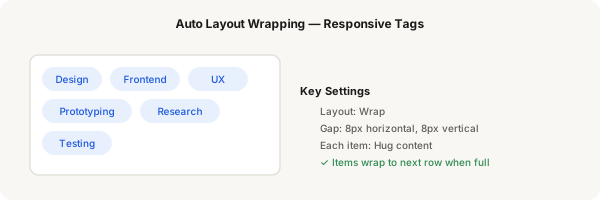
Auto layout wrapping makes items flow to the next row when they run out of space — like tags, chips, or responsive card grids. Instead of overflowing, items wrap naturally.
Step-by-step
- Create a horizontal auto layout frame (press Shift + A, set direction to Horizontal)
- Add several small text items inside (tags or chips). Each should be Hug content with horizontal padding
- Select the parent frame. In Auto Layout settings, find the Layout dropdown and change it from "Packed" to Wrap
- Set gap: 8 for horizontal and 8 for vertical spacing between wrapped items
- Now resize the parent frame narrower — the items will wrap to new rows automatically
- Set a fixed width on the parent frame (e.g. 375px) to see the wrapping clearly
- Add horizontal padding: 16 to the parent frame so items don't touch the edges
- Try adding more items — they keep wrapping as needed
- Each wrapped row behaves like its own auto layout row
- Use cases: tags in a profile, filtering chips, responsive card grids, pill lists
Pro tip
Wrapping is only available for horizontal auto layout frames. If you want vertical wrapping, use a horizontal frame with wrap and let items flow into multiple rows — it's the same effect.