32. Test Design on Different Frame Sizes
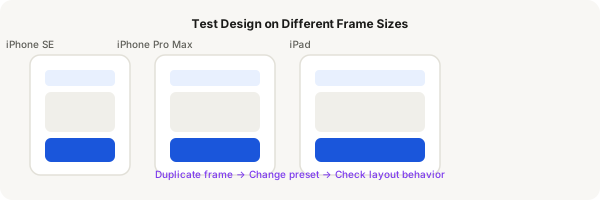
Before handing off to developers, test your design at different screen sizes. Figma makes it easy to duplicate a frame and change its preset — instantly seeing how your layout adapts.
Step-by-step
- Design a screen at iPhone 15 Pro Max size (430 × 932) — your main design frame
- Select the frame and press Ctrl + D to duplicate it
- In the Design panel, click the frame size dropdown (it says "430 × 932") and select iPhone SE (375 × 667)
- Observe how your layout changes at the smaller size. Do text labels still fit? Do buttons stay wide enough?
- Duplicate again and try iPad Mini (744 × 1133) — your mobile layout might look stretched
- Look for issues: overlapping text, missing padding, buttons that are too small or too large
- Adjust your design: increase padding, switch to Fill for widths, add min/max constraints where needed
- Use layout grids to create consistent column structure across sizes
- Check all sizes: iPhone SE (smallest), iPhone Pro Max (medium), iPad (largest)
- Make adjustments in the main design, then verify it works at each size
Pro tip
Frame presets don't affect auto layout items automatically — but they reveal layout issues. If something breaks at a different size, that's a sign you need to adjust constraints, padding, or fill settings.