33. Prototype: Connect a Full Multi-Screen Flow
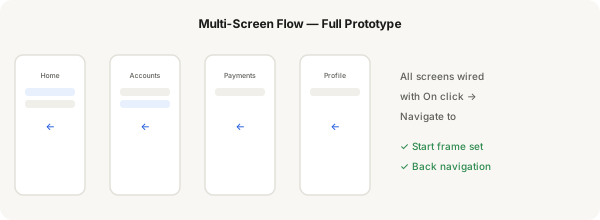
This is the capstone prototype lesson. You'll wire all your screens together into one complete, navigable flow — with forward navigation, back navigation, and proper starting frame.
Step-by-step
- Arrange all your screens in a row or grid in the canvas — this makes connections visible
- Switch to Prototype mode
- Start from the first screen (the Starting frame). Select the element that should navigate forward (e.g. a button or nav item)
- Drag the blue connection handle to the next screen. Set: On click → Navigate to → Smart Animate or Instant
- Repeat: wire every interactive element to its destination screen
- For back navigation: add a back button or a gesture (On drag → Navigate to previous screen)
- Use the Prototype panel (right sidebar) to view all connections in a list — check for orphan screens (screens with no connections)
- Set the first screen as the Starting frame (click the play icon in the Prototype panel)
- Add After delay triggers for auto-advancing elements (e.g. splash screen → home after 2 seconds)
- Press Present and test the full flow end to end. Fix any broken connections
Pro tip
The Prototype panel shows all connections. If a screen has no incoming or outgoing connections, it's orphaned — users will never see it. Always check for orphan screens before presenting.