34. Export Individual Assets
Exporting individual assets from Figma is straightforward. You select a layer, configure export settings, and click Export. You can export in multiple formats and scales simultaneously.
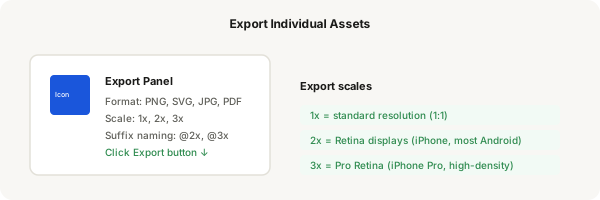
Step-by-step
- Select the element you want to export (a layer, component, or frame)
- In the Design panel, scroll all the way down to the Export section
- Click the + next to Export to add an export setting
- Choose the format: PNG for raster images (icons, screenshots), SVG for vector assets (logos, icons), JPG for photos, PDF for documents
- Set the scale: 1x for standard res, 2x for Retina, 3x for high-density displays
- Add a Suffix like @2x or @3x so exported files are named correctly (e.g. icon@2x.png)
- Click the Export button at the bottom of the panel
- Choose a location to save the exported file
- To add multiple scales: click the + icon again and add another export setting with a different scale
- Preview: Figma shows a preview of your export at the selected scale before you export
Pro tip
Pro tip: Use SVG for icons and simple graphics — they stay crisp at any size and developers prefer them. Use PNG for complex graphics with gradients or shadows that don't compress well to SVG.