35. Batch Export Assets at Multiple Scales
When you have multiple assets to export (e.g. a full icon set), batch exporting saves time. You mark each asset with export settings, then export them all at once.
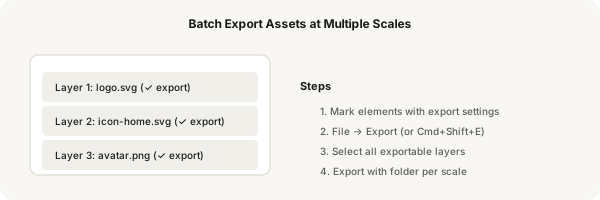
Step-by-step
- Go through each element you want to export. Enable the export toggle (check the checkbox in the Export section of the Design panel)
- You don't need to configure settings for each one — the export toggle just marks them as ready
- Go to the main menu: File → Export (or press Cmd + Shift + E on Mac, Ctrl + Shift + E on Windows)
- Figma shows a list of all marked layers with their export settings
- Check that each asset has the correct format and scale configured. Edit any that need changes
- Click Export at the bottom of the list. Choose a destination folder
- Figma exports all assets at once, creating subfolders per scale if configured (e.g. /1x/, /2x/, /3x/)
- Use Folder per scale option to keep assets organised for development
- Batch export is perfect for: icon sets, illustration libraries, marketing assets, and design system components
Pro tip
Before batch exporting, review each asset's export settings. An icon set might all be SVG 1x, but a screen export might be PNG 2x. Group similar assets together for cleaner exports.