21. Create Multi-Property Variants
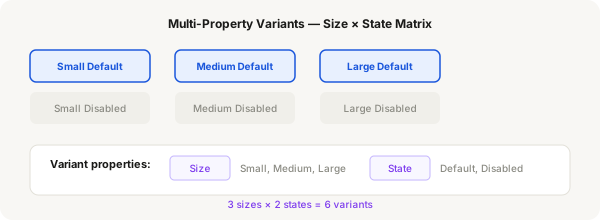
A component can have multiple variant properties — for example, Size (Small / Medium / Large) × State (Default / Hover / Active / Disabled). This creates a variant matrix that gives you full control over every combination.
Step-by-step
- Create a simple button component: a rounded rectangle with text inside, enabled with Auto Layout
- Press Ctrl + Alt + K to make it a component
- In the Properties panel, click the + icon next to Variant. Create a property called "Size" with values: "Small", "Medium", "Large"
- In each size variant, adjust the button dimensions and text size. Small: 32px tall. Medium: 44px tall. Large: 56px tall
- Now add a second variant property. Click the + icon again. Create a property called "State" with values: "Default", "Hover", "Active", "Disabled"
- Figma generates a matrix of all combinations (3 sizes × 4 states = 12 variants). Click each cell to edit it
- Default: normal fill. Hover: slightly lighter fill. Active: darker fill. Disabled: grey fill, reduced opacity
- Adjust text colour per state if needed (e.g. white for Default, light grey for Disabled)
- Rename variant cells with meaningful names (e.g. "Small/Default", "Large/Disabled") for clarity
- Test by creating an instance and changing the Size and State properties independently
Pro tip
The variant matrix grows quickly! 3 sizes × 4 states = 12 variants. That's manageable, but be careful — adding 2 more states creates 3 × 6 = 18 variants. Plan ahead.