24. Create Smart Animate Transitions Between Variants
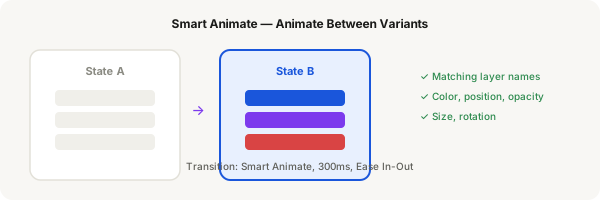
Smart Animate detects matching layer names between two variants and animates the differences — position, size, opacity, colour — creating smooth transitions without any manual keyframes.
Step-by-step
- Create a component with two variants: Variant A and Variant B
- In Variant A, add 3 coloured rectangles stacked vertically. Name them clearly (e.g. "Item 1", "Item 2", "Item 3")
- In Variant B, change the colours and positions of the same named layers. Move one, resize another, change opacity
- Switch to Prototype mode
- Select the element that triggers the change (e.g. a button), add interaction: On click → Navigate to ... select your Variant B
- In the Transition panel, change the animation type from Instant to Smart Animate
- Set duration: 300ms, Easing: Ease In-Out for a polished feel
- Test by pressing Present and triggering the interaction — layers with matching names animate smoothly
- Mismatched layer names won't animate — they'll just appear/disappear. Rename layers carefully
- Smart Animate works between screens, overlays, and component variants in prototypes
Pro tip
Smart Animate only works with matching layer names. Layers named "Card" in Variant A and "Card" in Variant B will animate. "Card" → "Card 2" will NOT animate. Name your layers deliberately.