25. Build a Bottom Sheet Component
A bottom sheet slides up from the bottom of the screen with content inside. You'll build it as a component with two positions: off-screen (closed) and on-screen (open).
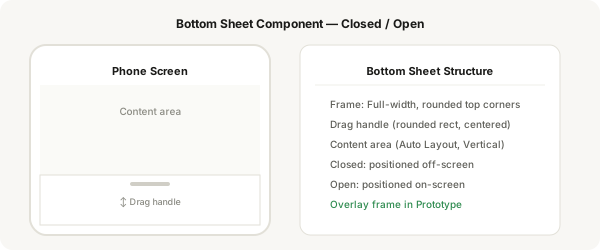
Step-by-step
- Press F and create a frame the full width of your screen (e.g. 375 wide × 400 tall)
- Set the frame's corner radius to 20px on the top-left and top-right corners only — use the corner radius controls to set top corners to 20, bottom corners to 0
- Give the frame a white fill and shadow for depth
- Add a drag handle at the top: draw a small rounded rectangle (40×4) centered horizontally, colour #d0cec6
- Add a vertical auto layout frame inside for your sheet content (text, icons, buttons, etc.)
- Select the entire bottom sheet and press Ctrl + Alt + K to make it a component
- Add a variant property "Position" with values "Closed" and "Open"
- In the Closed variant, move the entire sheet downward so it's positioned off-screen (Y position = height of screen + 100)
- In the Open variant, position the sheet so the top edge is visible on screen
- Save — you now have a bottom sheet that can slide in and out
Pro tip
For the Closed variant's off-screen position: place your phone frame at Y: 0. Position the bottom sheet at Y: 800 or whatever value puts it completely below the frame. The exact value depends on your screen height.