26. Prototype: Bottom Sheet Overlay with Smart Animate
You'll place the bottom sheet as an overlay in your prototype. An overlay appears on top of the current screen — perfect for modals, sheets, and menus. Smart Animate makes the slide transition smooth.
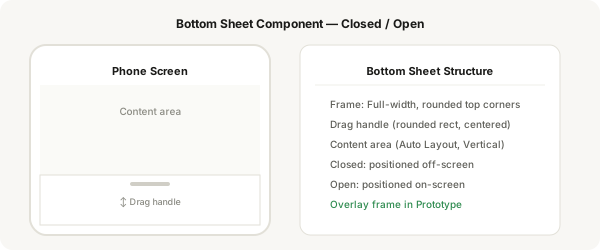
Step-by-step
- Create your main screen with a button that says "Open Sheet"
- Select the bottom sheet component and press Ctrl + Shift + O to set it as an Overlay (or set it up in the Prototype panel)
- Position the overlay so the bottom sheet's Open variant is visible on screen
- Set the overlay to Open variant by default (we'll hide it initially with positioning)
- Actually, the common approach: place the bottom sheet in a separate frame positioned below the screen, and use the prototype interactions to slide it in
- Alternatively: place the bottom sheet component inside your screen frame. Set the instance to Closed variant. Smart Animate will handle the position change
- Switch to Prototype mode
- Select the "Open Sheet" button, add interaction: On click → Change to Bottom Sheet (set to Open variant), Smart Animate transition, 300ms
- Add a close interaction: tap a close button or backdrop → Change to Bottom Sheet (set to Closed variant)
- Test: tap Open → sheet slides up with Smart Animate. Tap Close → sheet slides back down
Pro tip
The simplest approach is: place the bottom sheet instance directly on your screen. Set it to Closed variant. Add an interaction that Changes to the Open variant with Smart Animate. No overlays needed.