27. Build a Modal Component
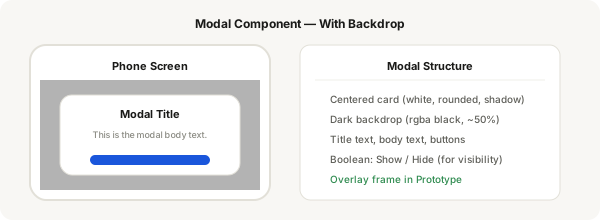
A modal is a centred dialog that appears on top of the screen with a dark backdrop. You'll build a modal component with show/hide functionality using boolean properties.
Step-by-step
- Press F and create a frame the full size of your phone screen (375 × 812) — this is the modal container (backdrop)
- Fill it with a semi-transparent dark colour (rgba(0,0,0,0.5)) — this is the backdrop
- Inside the backdrop, create a centred card: press R, draw 300×200, fill white, corner radius 16
- Add a title text layer, body text layer, and two buttons (Cancel + Confirm) inside the card using vertical auto layout
- Add a subtle shadow to the card for depth
- Select the entire modal (backdrop + card) and press Ctrl + Alt + K to create a component
- Add a boolean property called "Show" — default to True (visible)
- Add a variant property "State" with values "Open" and "Closed" if you prefer variants over booleans
- For the Closed state: set the entire component's opacity to 0% and disable click-through (or position it off-screen)
- Test by creating an instance and toggling Show on/off
Pro tip
Modal best practices: (1) Card width: 80-90% of screen, (2) Backdrop should be dismissable (click outside to close), (3) Corner radius 16 on card, (4) Clear action buttons, (5) Shadow on card for depth.