28. Prototype: Modal Open and Close with Backdrop Dismiss
You'll prototype a modal that opens when a button is tapped and closes when the backdrop or close button is tapped — with smooth Smart Animate transitions.
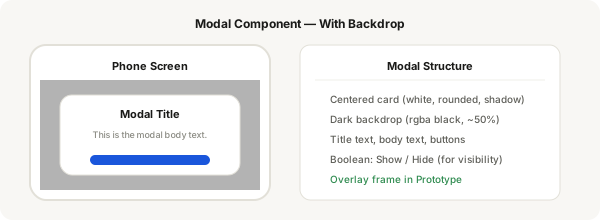
Step-by-step
- Create your main screen with a "Open Modal" button
- Place your modal component as an overlay on the main screen
- Set the modal instance to the Closed variant (or Show = False)
- Switch to Prototype mode
- Select the "Open Modal" button, add interaction: On click → Change to Modal (set to Open variant or Show = True), Smart Animate, 250ms
- Select the backdrop layer of the modal, add interaction: On click → Change to Modal (set to Closed variant), Smart Animate, 200ms
- Select the Close button (or Cancel), add interaction: On click → Change to Modal (Closed), Smart Animate, 200ms
- Select the Confirm button, add interaction: On click → Navigate to next screen (Instant transition)
- Set main screen as Starting frame
- Test the full flow: tap Open Modal → modal appears with fade → tap backdrop → modal closes
Pro tip
For backdrop dismiss: the interaction is added to the backdrop rectangle layer itself, not the modal component. This way tapping anywhere outside the modal card closes it.