23. Prototype: While Hovering and While Pressing Interactions
Figma's prototyping supports hover and press triggers. When a user hovers over a button, it changes to a Hover variant. When they press down, it changes to a Pressed variant. This creates tactile, responsive UI.
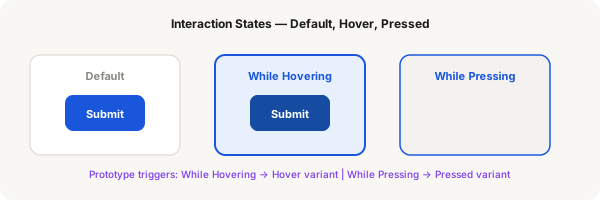
Step-by-step
- Create a button component with 3 variants: "Default", "Hover", "Pressed"
- Default: normal brand colour (#1a56db). Hover: slightly lighter (#1e6fe8). Pressed: darker (#154ba1)
- Add a subtle scale change if you want: Pressed variant could be 0.96 scale to simulate a press
- Switch to Prototype mode
- Select the Default variant of the button component (this auto-selects all instances)
- In the Interactions panel, click the + icon
- Set trigger to While hovering. Set action to Change to → Hover variant. Transition: Instant or 0ms
- Add another interaction: trigger: While pressing → Change to Pressed variant. Transition: Instant
- Add a third interaction (for mouse leave): trigger: Mouse leave → Change to Default variant
- Test by pressing Present and hovering / clicking the button
Pro tip
While hovering and While pressing are prototype-level interactions, not component properties. Set them on the component itself in Prototype mode — they apply to all instances automatically.